
Choosing the order your products appear in
Put your categories in the order your customers should see them, and the products inside each one: turkeys at the top in December, say. It takes a minute, and you can change it as often as you like.
How the order works
Until you choose, the ordering app lists your categories A to Z. Inside a category each customer sees their own order: the things they have starred and the things they usually buy come first.
You can change two things, separately:
- The order of your categories. The same for every customer.
- The order of the products inside one category. Also the same for every customer, and it replaces each customer's own order for that category only.
Anything you have not arranged stays exactly as it was.
Put your categories in order
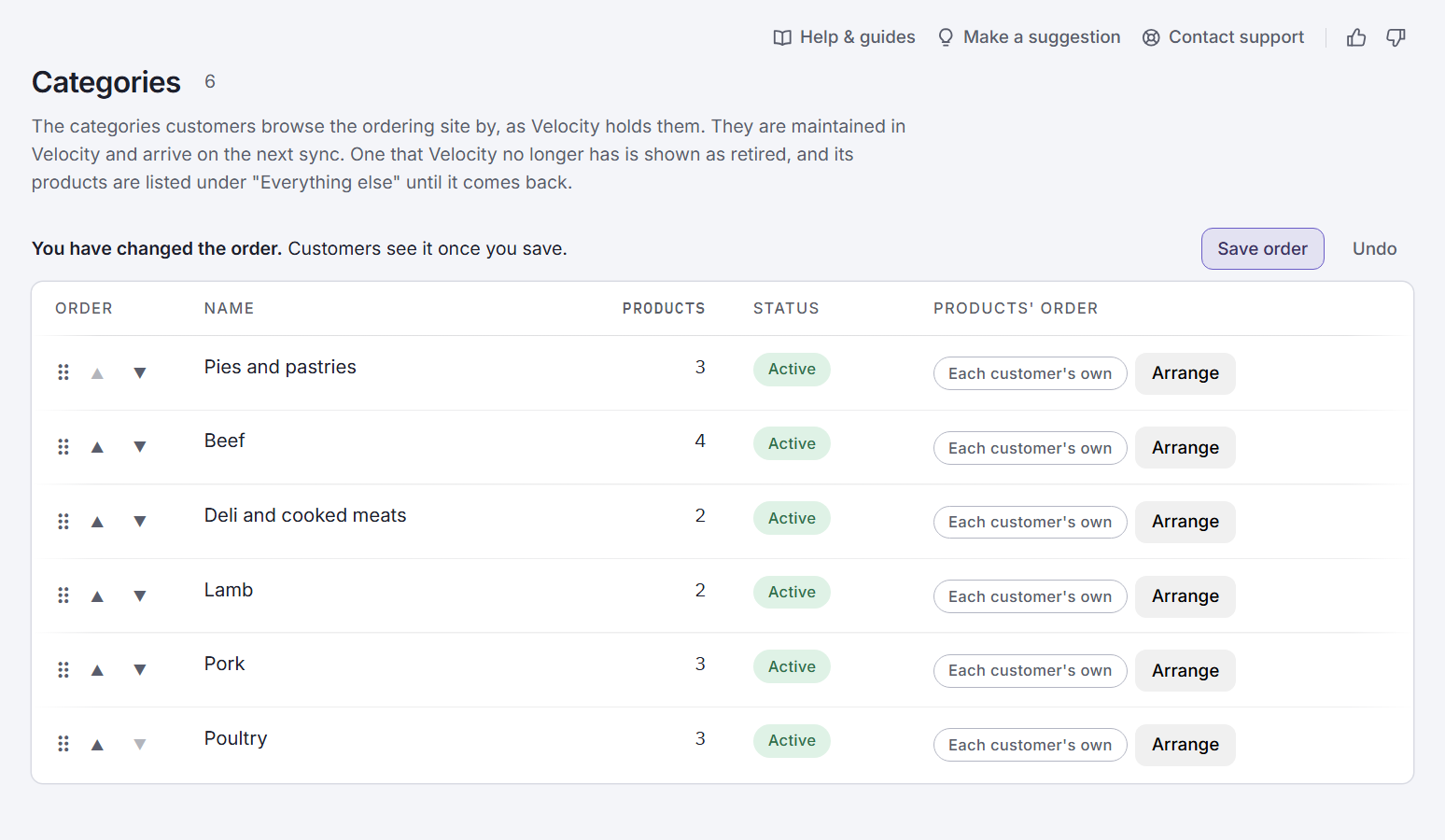
Open Categories
In your admin centre, go to in the menu on the left.
Move the rows
Drag a row by the handle at its left-hand end, or press its and arrows. The top row is the one your customers see first.
Save
The page says You have changed the order. Customers see it once you save. Press , or to put the rows back as they were.
To go back to A to Z, press . A category you add later goes after the ones you have arranged.
Put the products in one category in order
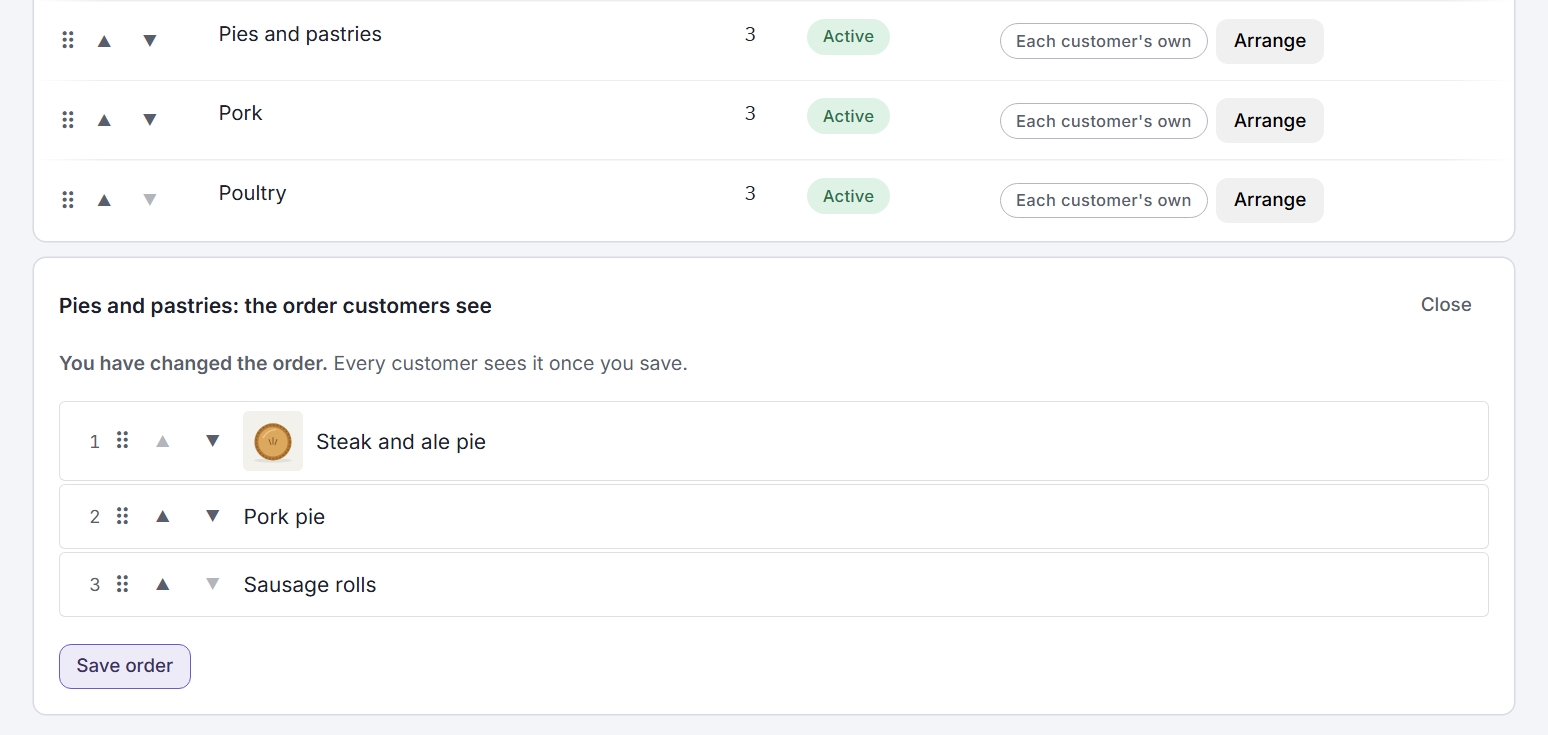
Press Arrange
On the Categories page, each row has a column. It says Each customer's own until you arrange that category. Press on the category you want.
Move the products
The category's products are listed underneath, numbered. Drag them, or use the arrows, until they are in the order you want.
Save
Press . Every customer now sees that category in your order.
A product you add to the category later goes after the ones you have arranged. To hand a category back to each customer's own order, press and then .
What your customers see
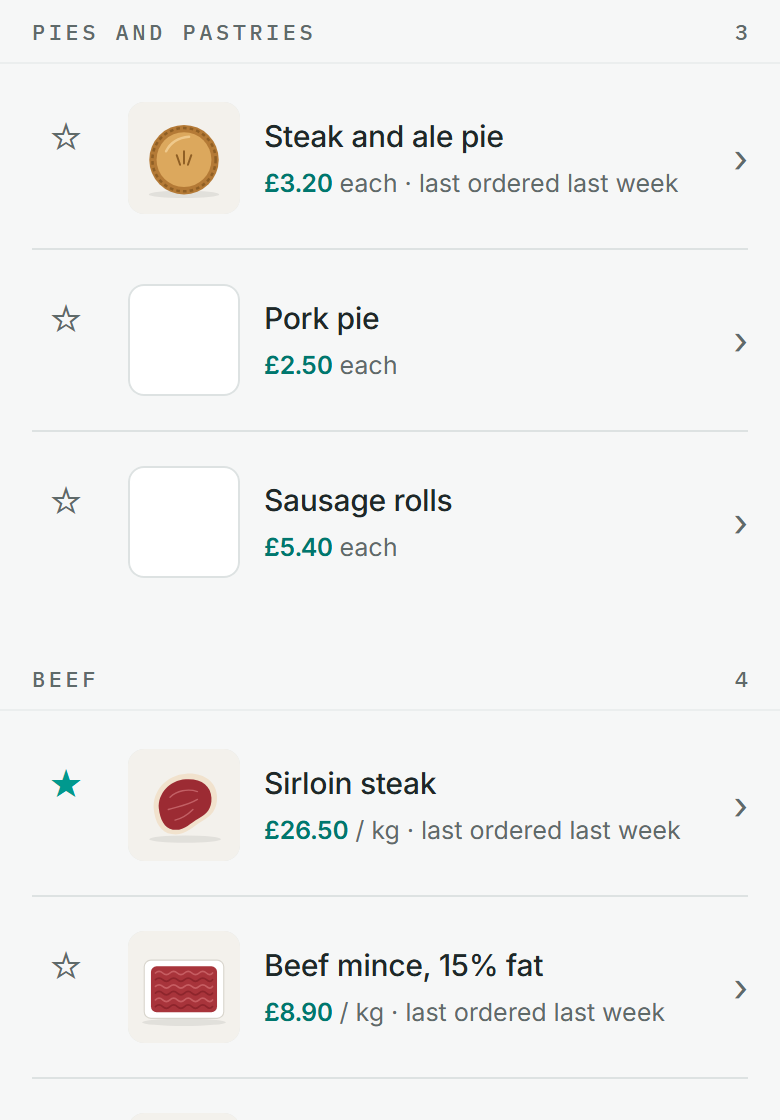
The next time a customer's ordering app loads your products, your categories are in your order, and so are the products in any category you arranged.
A customer who searches, or looks at their favourites, still finds everything: the order only changes what comes first.
This is the real screen, with a made-up shop's products.
Questions
Will the Velocity sync put it back?
No. The order is Order-Point's own, and the sync never touches it.
Can one customer have a different order from another?
Not one you set. Where you have arranged a category, everybody sees your order. Where you have not, each customer sees their own.
A product is in the wrong category.
Categories and the products in them come from Velocity, so move it there and it follows on the next sync. A shop that does not use Velocity changes it on the Products page.
I want something at the top just for a week.
Move it up, save, and move it back when the week is over. Nothing else is affected.
Stuck? Email support@conexiosoftware.com. All guides