
Adding a customer, and their order texts
Somebody new rings up or comes to the counter. Your staff can add them in under a minute and take their order straight away, and the customer is told about their order by text or email without having to do anything.
Add the customer
Sign in to your ordering site as staff
The same address your customers order from. Signed in as staff, it opens on Who is this order for?
Search for them first
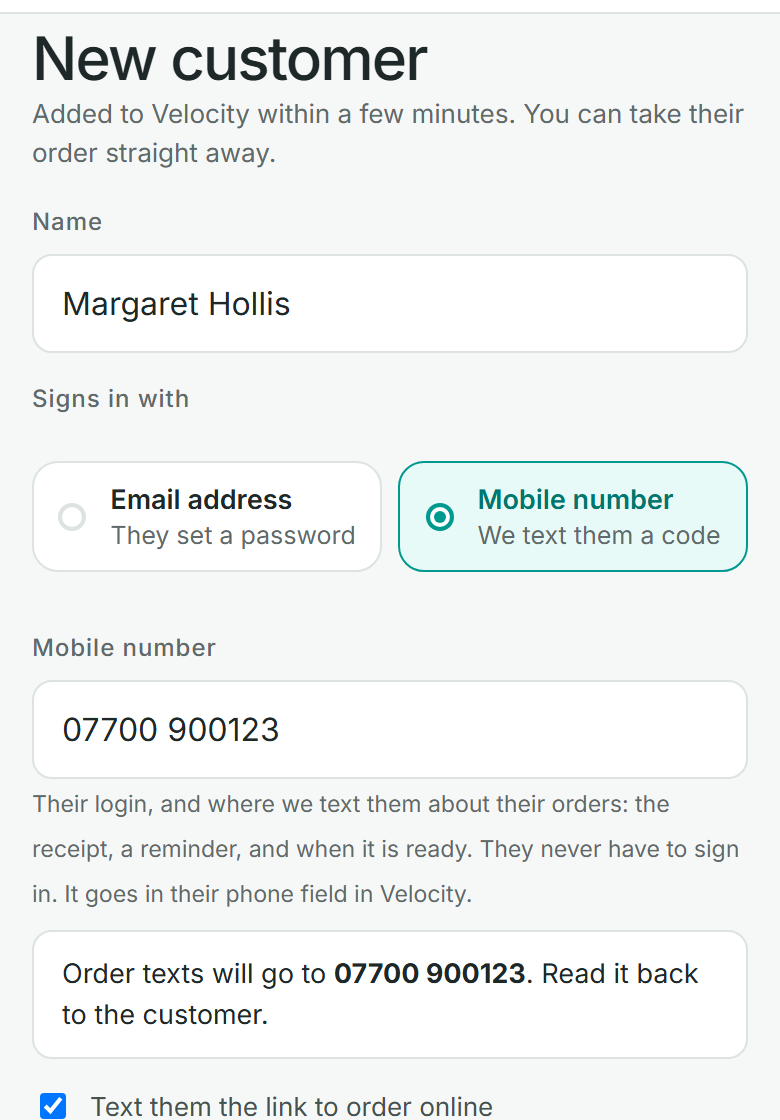
Type their name. If they are already a customer, pick them and carry on. If not, press . If that button is not there, tick on the Settings page of your admin centre.
Fill in the form
Their , then how they will sign in: or . An address and postcode are optional. is Trade for a business, or Public for a member of the public.
Press Add customer
You can take their order straight away. If you use Velocity, the account is added there within a few minutes.
This is the real screen, with a made-up shop.
Adding by mobile number
For a customer with no email address, or who would rather not give one. Their number is their login, and it is where the texts about their orders go.
- Read the number back. As you type it, the form says Order texts will go to 07700 900123. Read it back to the customer. That is the one check there is: the texts go to whatever was typed.
- They never have to sign in. The texts start with their first order. If they do want to order for themselves, they sign in with a code texted to that number.
- Text them the link to order online is ticked to start with. Untick it if they will only ever order through you.
Mobile number is offered once your shop has texting on. On the Settings page of your admin centre, tick . Texts cost money, so it is off until you choose it.
What the customer is told
Whether they placed the order themselves or your staff placed it for them, the customer hears about it:
| When | What they get |
|---|---|
| The order is placed | A receipt, listing what was ordered and when it is for. |
| Before a collection | A reminder, if Remind customers before they collect is ticked in Settings. You choose how many days before; two, unless you change it. |
| It is ready to collect | A message saying so, when your staff mark it ready. |
| Something is short or has changed | A message saying what. |
A customer who signs in with a mobile number gets these as texts. A customer with an email address gets emails.
The order's own page in the admin centre shows What the customer was told: which message went, and to which number or address.
Stop the messages for one customer
Open Logins
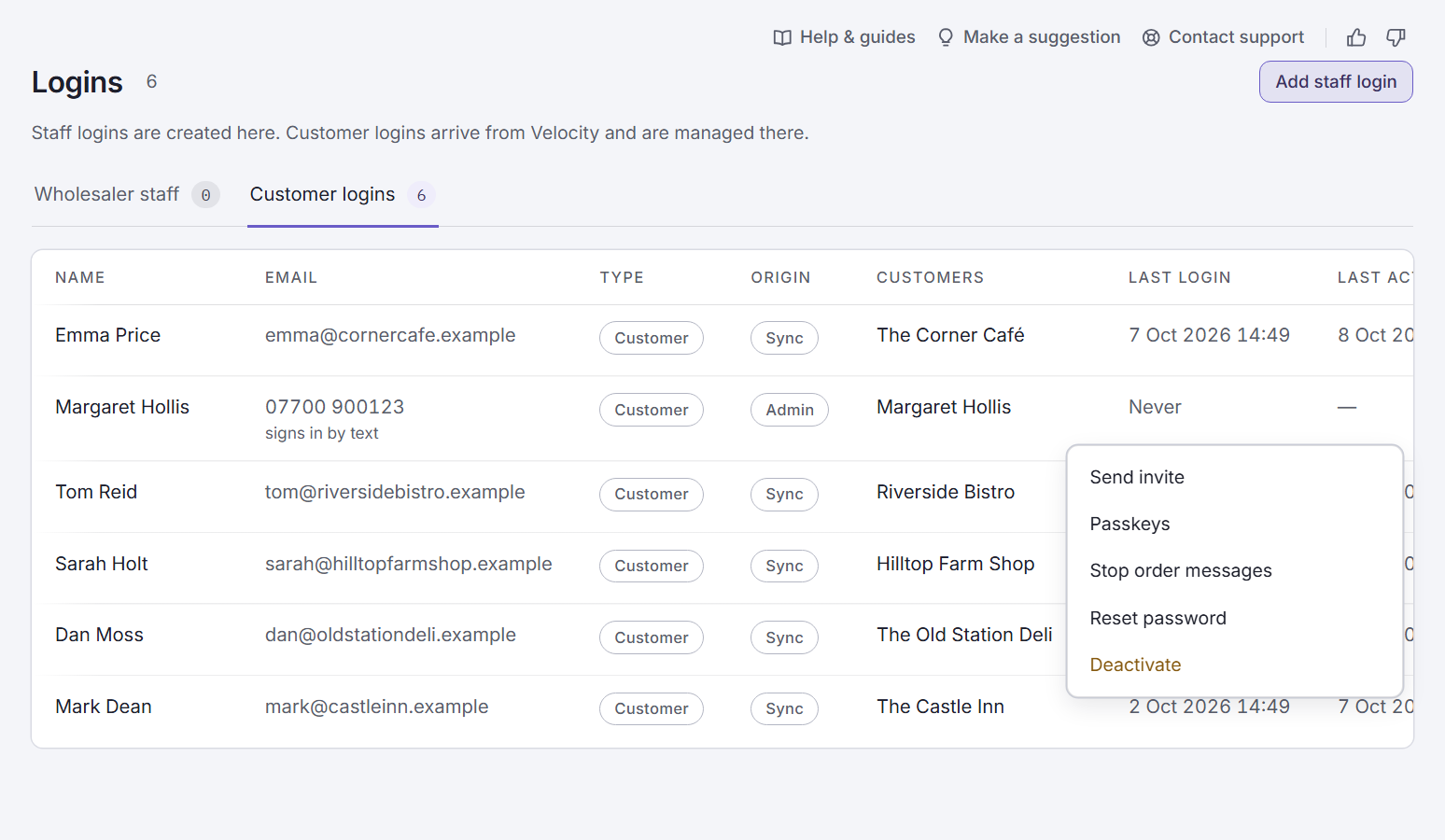
In your admin centre, go to and choose the customers tab.
Open the customer's menu
Press the three dots at the end of their row, then .
Their row then says No order messages. To start them again, open the same menu and press .
Questions
The number was typed wrong.
Stop the messages for that login straight away, as above, so nothing more goes to the wrong phone. Then email Conexio support with the customer's name and the right number, and we will correct it. Do not add the customer a second time.
A customer says they got no text.
Open the order in the admin centre and look at What the customer was told. It says what was sent and where, or why nothing was.
Can a customer have more than one login?
Yes. When your staff place an order for them, every login that customer has is told. When one of their own logins places it, only that login is.
Does adding a customer here add them to Velocity?
If you use Velocity, yes: within a few minutes, with Velocity's usual defaults. Their first order waits until the account is there, then follows it.
Stuck? Email support@conexiosoftware.com. All guides