
Customer groups, and a minimum order
A school, a pub and somebody ordering their Christmas turkey do not have to be treated the same. Put your customers in groups of your own, choose which of your order types each group can place, and set the least an order has to come to.
What a group is
- Trade and Public are still your two kinds of customer. A group sits under one of them: Schools under Trade, a Christmas club under Public.
- A customer is in one group at most. Everyone starts in none, and for them nothing changes.
- A new group changes nothing by itself. It is the same as Trade, or Public, until you change a row on its page. So you can make a group and put customers in it before deciding what it is for.
- Nothing changes in Velocity. Groups are Order-Point's own.
Make a group
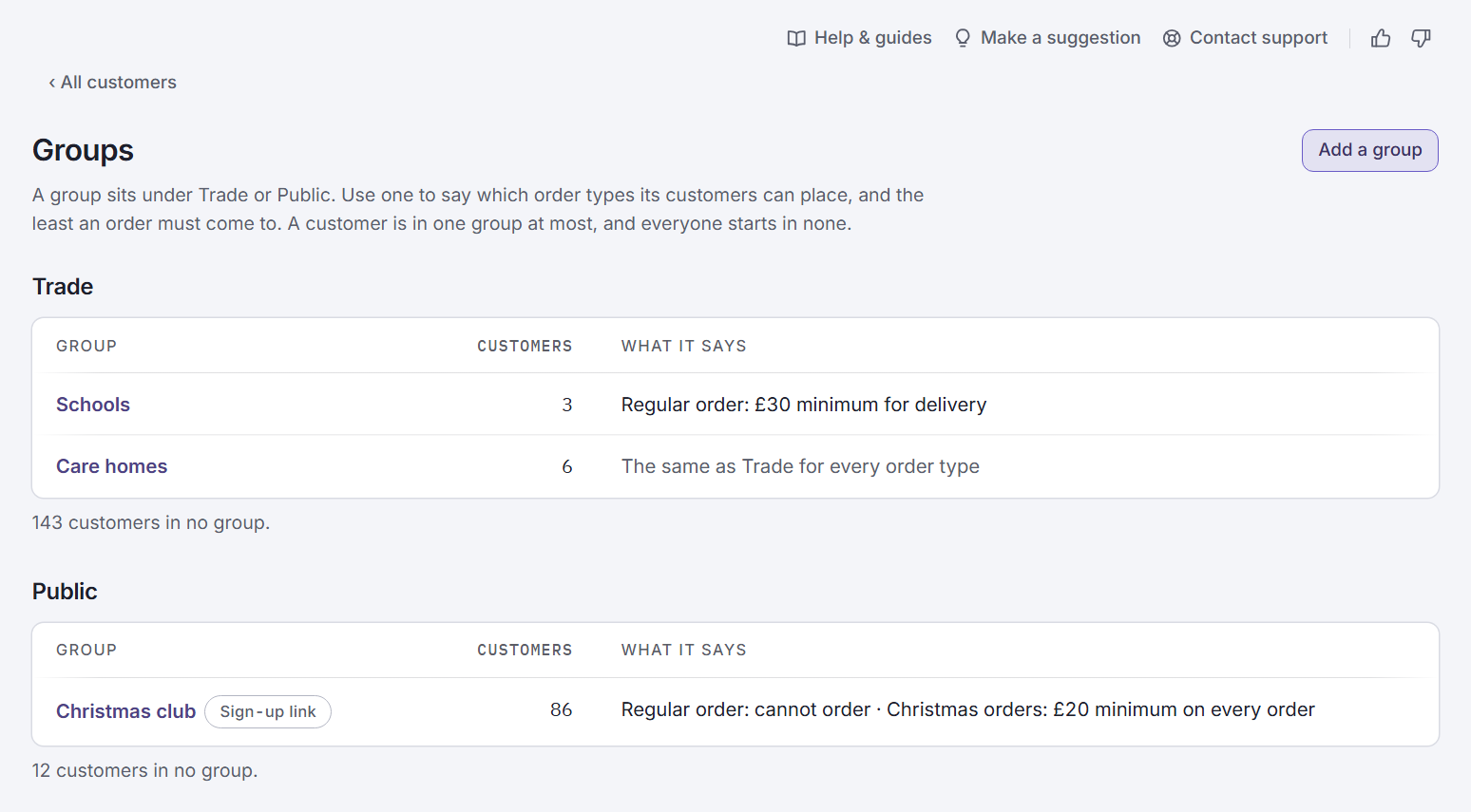
Open Groups
In your admin centre, go to and press at the top of the page.
Press Add a group
Give it a , and say whether its customers are or . That choice cannot be changed afterwards: a group only ever holds one kind of customer.
Press Add group
The group's own page opens, ready for its rules and its customers.
These are the real screens, with a made-up shop.
Say what the group can order
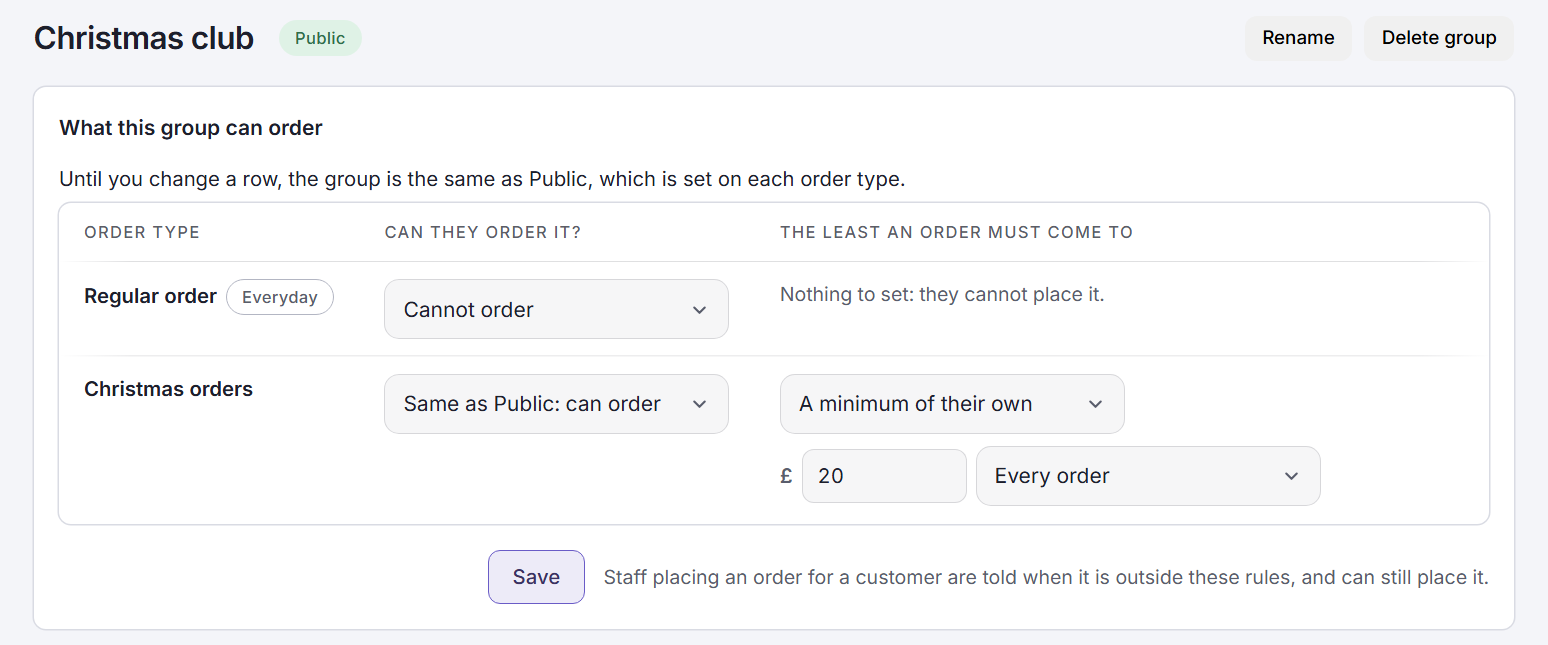
The group's page has a row for each of your order types, under What this group can order. Each row asks two things.
| Can they order it? | What it does |
|---|---|
| Same as Trade | The group follows the ticks on the order type itself. This is where every row starts. A Public group says Same as Public. |
| Can order | The group can place this order type, even if other trade customers cannot. A Staff order only your own team sees, for example. |
| Cannot order | The group is not offered this order type at all. A Christmas club that should not be placing your Regular order, for example. |
| The least an order must come to | What it does |
|---|---|
| Same as Trade | The group has the order type's own minimum, if it has one. |
| A minimum of their own | Type the amount, then choose Delivered orders only or Every order. |
| No minimum | The group has none, whatever the order type says. |
Each Same as choice says what it comes to, such as Same as Trade: can order, so you never have to go and look. Press when the rows are right.
Put customers in the group
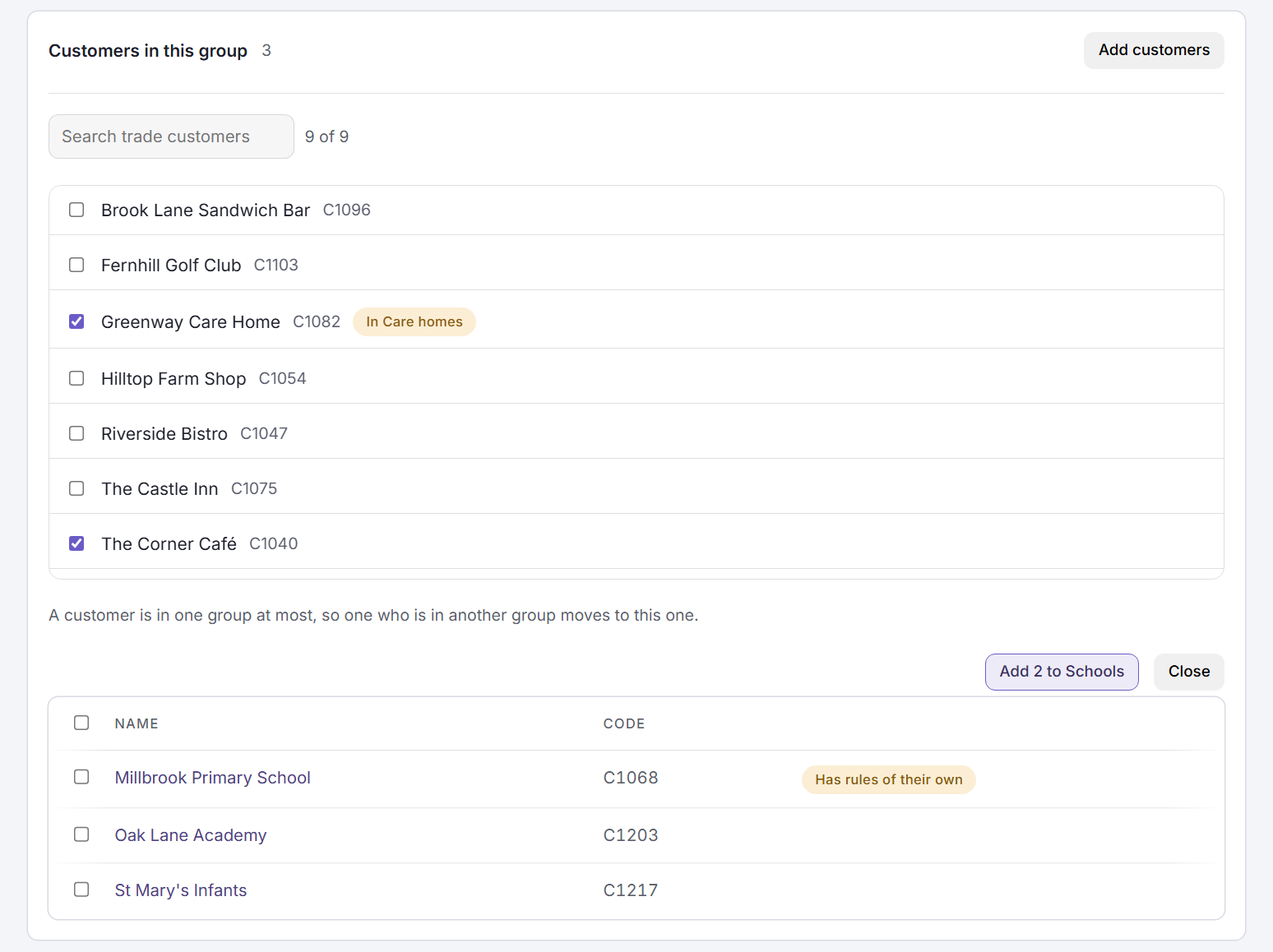
Press Add customers
On the group's page, under Customers in this group. The list is your trade customers for a Trade group, and your public customers for a Public one.
Tick the ones to add
Search by name if the list is long. A customer already in another group says so, such as In Care homes: adding them moves them, because a customer is in one group at most.
Press Add to the group
The button counts them for you: Add 2 to Schools.
- To take customers out, tick them in the group's list and press . They go back to no group.
- One customer at a time is quicker from the customer's own page: open them from , go to and choose their .
- When your staff add a new customer on the ordering site, the New customer form offers once you have a group of that kind.
A group only takes its own kind of customer. To put a trade customer in a Public group, mark them public first: tick under on their page. A customer whose kind changes leaves a group of the other kind.
Set a minimum order
A minimum is the least an order has to come to before it can be placed. You can set one in three places, and the nearest one to the customer wins.
| Set it on | Who it is for |
|---|---|
| The order type | Everyone who can place that order type. Go to Order types, press Edit, and fill in Minimum order. |
| A group | That group's customers, instead of the order type's. On the group's page, choose A minimum of their own. |
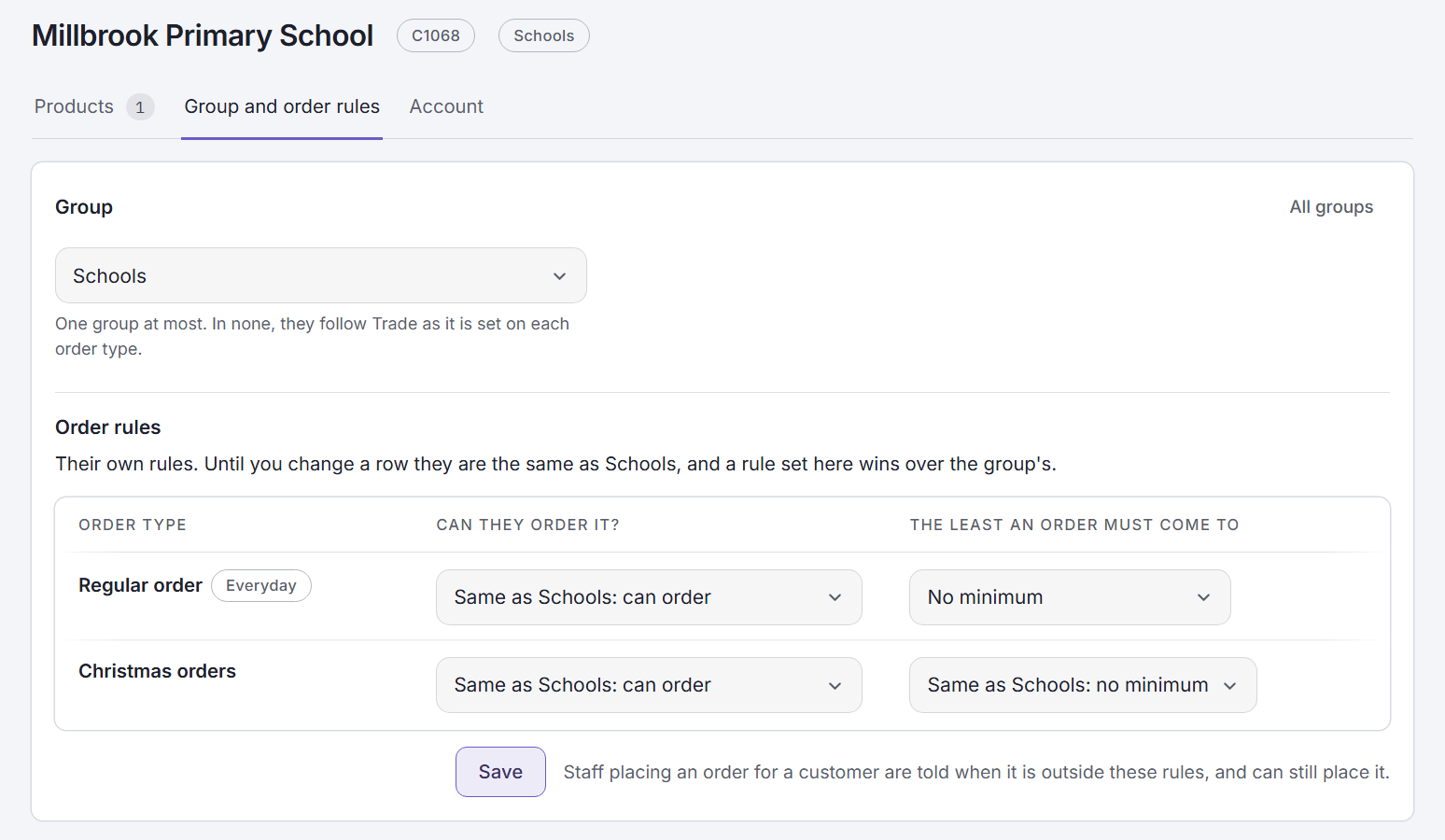
| One customer | That customer, instead of their group's. On their own page, under Group and order rules. |
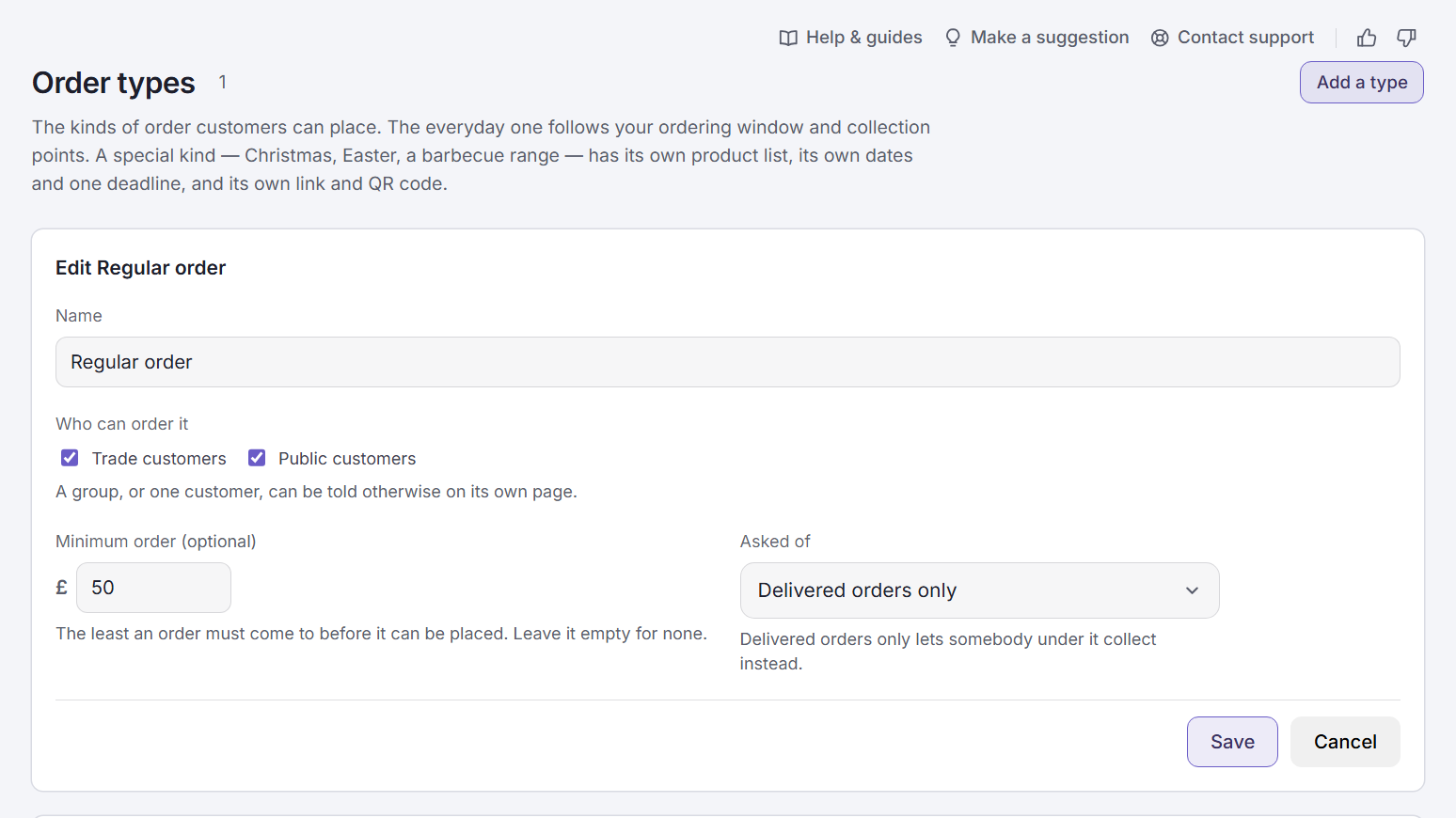
- Asked of says which orders the minimum is for. Delivered orders only lets somebody under it collect instead. Every order holds collections too.
- It is measured on the order's total as it stands when it is placed. Items sold by weight are cut to about the weight asked for, so if the invoice comes in a little under, nothing happens.
- The order type's card lists the groups that are different, after Different for. Press one to open that group.
If your prices are hidden from customers, a minimum can still be set but nobody is held to it on the ordering site. The page says so wherever you set one. It comes into force when you show prices, in Settings.
What your customers see
- An order type that is not theirs is not offered. They never see it, so there is nothing to explain.
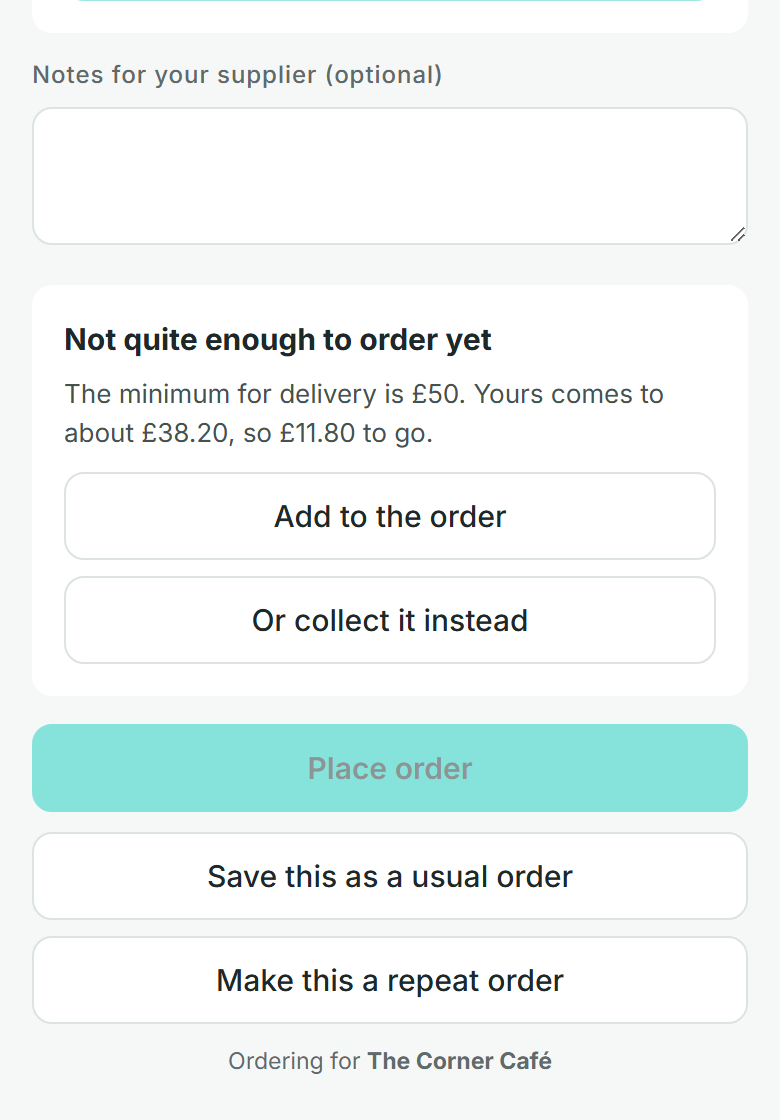
- Under the minimum, they are told how far off they are. The basket says so as they shop, and the checkout says it in full: The minimum for delivery is £50. Yours comes to about £38.20, so £11.80 to go.
- Place order waits until the order is big enough. takes them back to your products.
- Or collect it instead is offered when the minimum is for delivered orders only and they could collect.
When your staff place the order
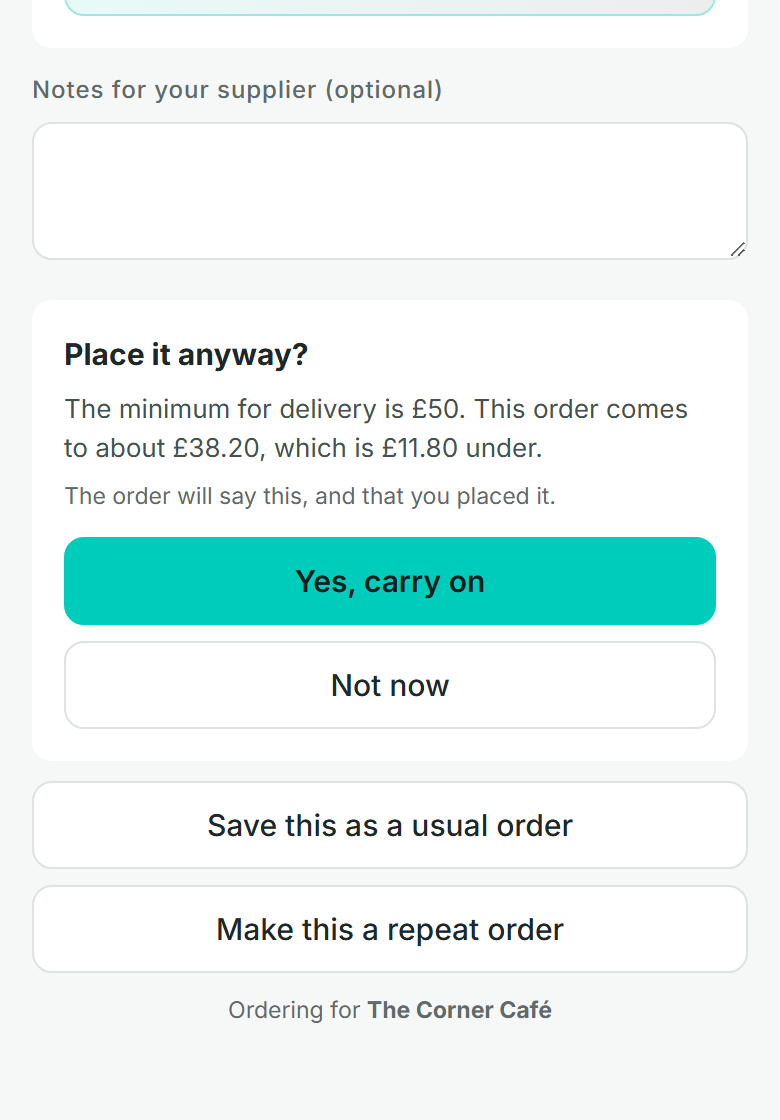
The rules are for customers ordering for themselves. Your own staff, taking an order for a customer, are told and can carry on.
- Staff are offered every order type. One the customer cannot place themselves is marked Not usually open to this customer.
- They are asked once. If the order is under the minimum, or of an order type that is not the customer's, pressing asks Place it anyway? Press .
- The order says so. In your admin centre the Orders page marks it Under minimum or Not their usual type, and the order's own page says by how much and who placed it.
- A repeat order is never held back. If one comes in under the minimum it is placed, and marked the same way. A customer is held to the minimum when they set a repeat order up.
Give a group its own sign-up link
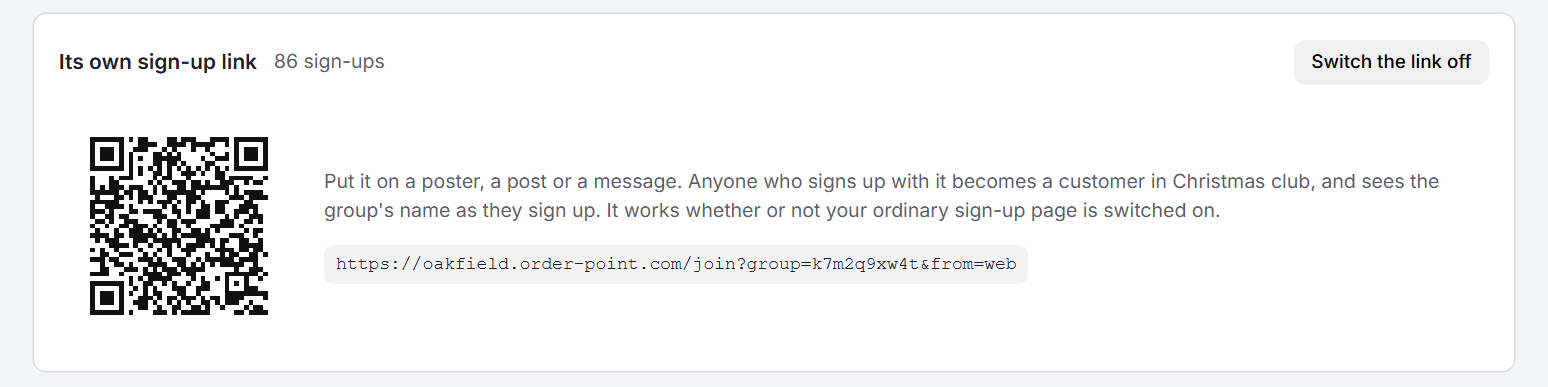
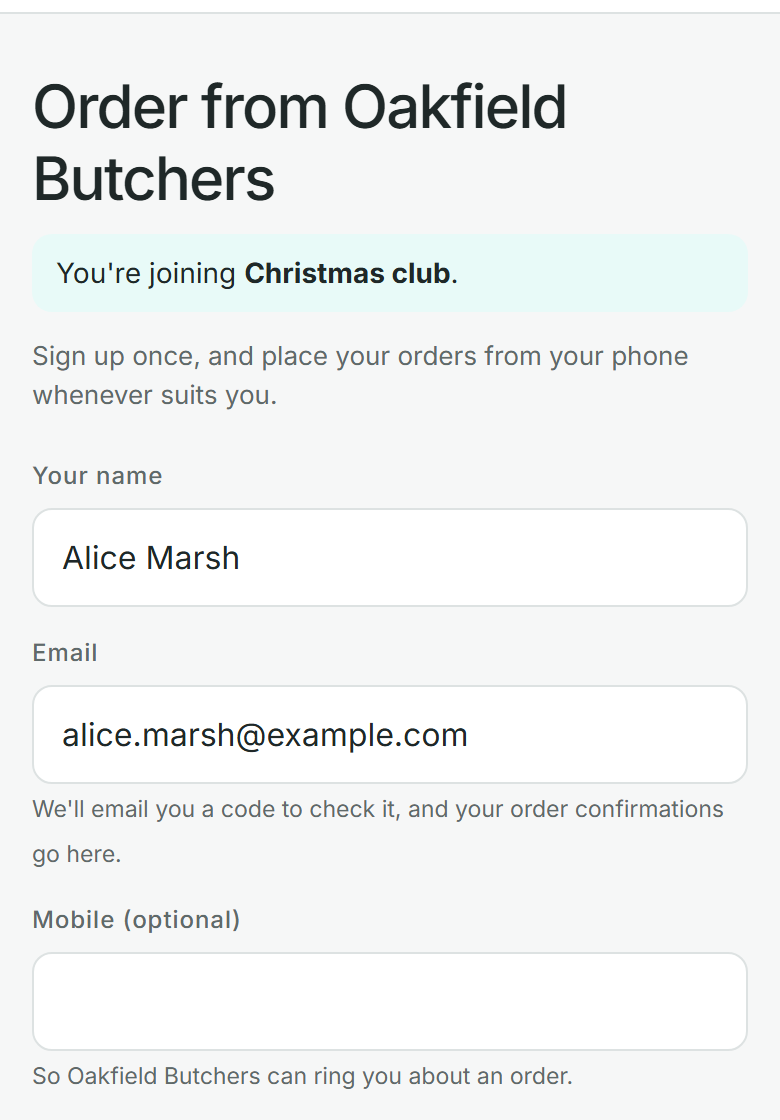
A Public group can have a link of its own, for a poster, a post or a message. Somebody who signs up with it becomes a customer in that group straight away, instead of in no group.
Open the group
From , then . It has to be a Public group: everyone who signs themselves up is a public customer.
Press Make a sign-up link
Under Its own sign-up link. The link and its QR code appear. Nothing is open until you press this.
Share it
Copy the link into a post or a message, or put the QR code on a poster. Whoever follows it sees You're joining Christmas club and signs up as usual.
See who came
The group's page counts the sign-ups, and the page shows the group's name beside each one.
- It is its own switch. The link works whether or not your ordinary sign-up page is switched on, so you can take club members and nobody else.
- Switch the link off when you are finished with it. Anyone who follows it afterwards is told it is no longer in use. A link you make later is a new one, so an old poster does not start working again.
- If you approve sign-ups by hand, somebody from a group's link waits on the Sign-ups page like anyone else, and joins the group once you approve them.
People who sign themselves up collect their orders, so the link takes nobody while collection is switched off in Settings. The group's page tells you when that is so.
Questions
I made a group and nothing changed.
That is right. A group is the same as Trade, or Public, until you change a row on its page and press Save.
A customer says an order type has gone.
Open them from Customers and look at Group and order rules. It shows their group and what each order type is set to for them. A rule of their own wins over their group's.
Can a customer be in two groups?
No. Adding them to a second group moves them to it.
What happens if I delete a group?
Its customers go back to no group and follow Trade or Public again. Any rules a customer has of their own stay. The page asks before it deletes.
Does a minimum include VAT?
It is compared with the order's total as your customer sees it on the ordering site, worked out from the prices they are shown.
Can a customer get round the minimum?
Not on the ordering site. Only your own staff can place an order under it, and the order records that they did.
Stuck? Email support@conexiosoftware.com. All guides